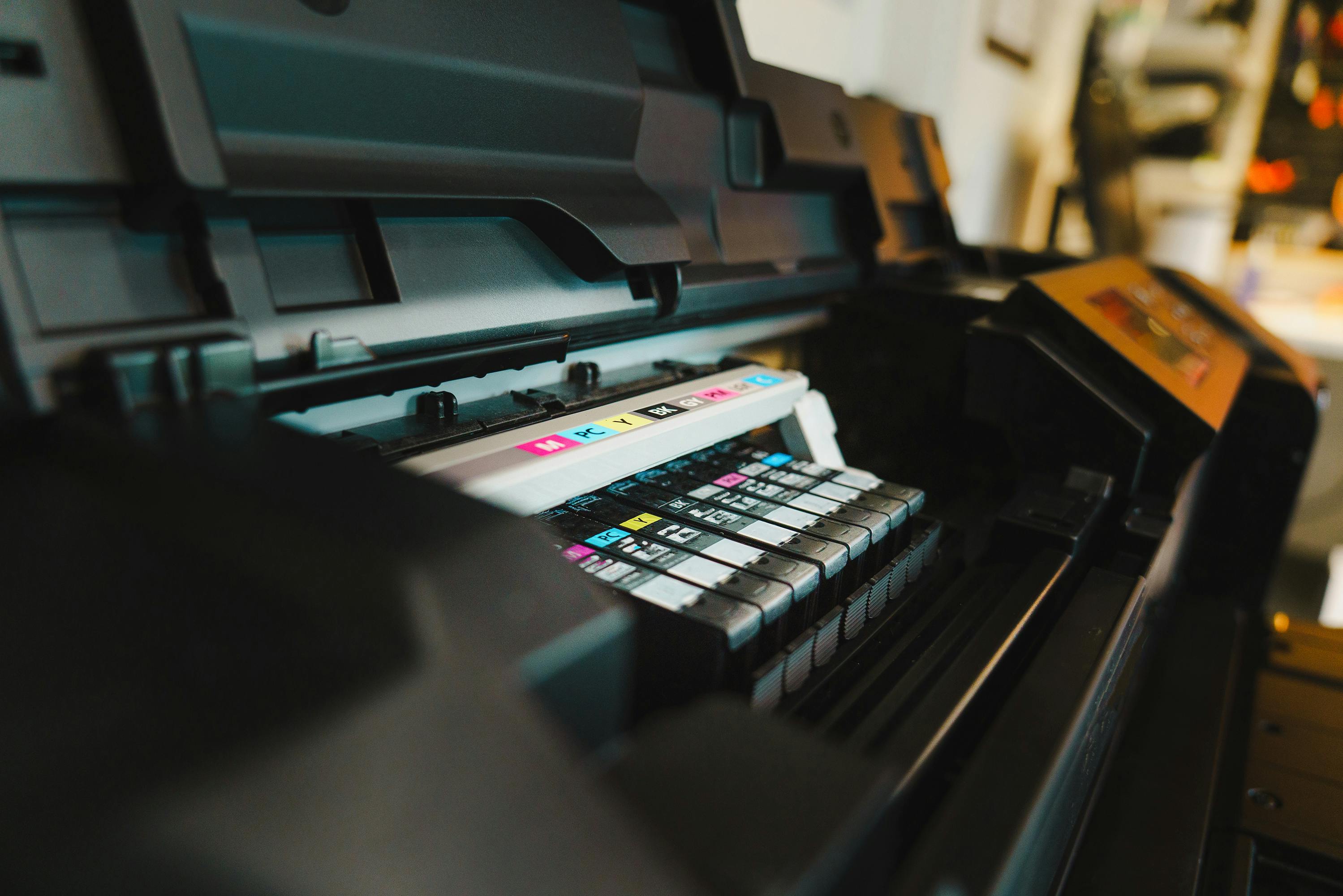
“Cartridge not recognized”
Almost always caused by dirty contacts. Remove the cartridge, wipe the gold/copper contacts with a dry, lint-free cloth, and reseat. If the message persists, gently clean the matching contacts inside the printer with a cotton swab dipped in 91%+ isopropyl alcohol.
“No ink” when the cartridge is full
Common after a long pause between print jobs. Run the Deep Clean cycle from the printer’s maintenance menu — it may take 2 or 3 cycles and a fresh sheet of paper each time.
Streaks, missing colors, or banding
- Run Print Head Cleaning from the maintenance menu (not the same as Deep Clean).
- If color is missing, you may have an empty cartridge that the printer hasn’t flagged yet.
- Print on plain copy paper for tests — photo paper hides issues.
Ink dries up between uses
Inkjet print heads need use to stay moist. Print at least one color page per week to keep the nozzles healthy. If your printer is rarely used, consider a laser printer instead.
Should you use third-party cartridges?
Third-party cartridges can save 60–80% on cost-per-page but may not work reliably with firmware updates from the manufacturer. If you use them, postpone non-essential firmware updates and keep one OEM cartridge on hand as a fallback.
Refilling cartridges
Refilling is environmentally friendly but requires care — air bubbles in the cartridge are the #1 cause of failure. Refill at room temperature and let the cartridge sit upright for 10 minutes before installing.
EcoTank / continuous-ink systems
For tank-based printers, check the ink levels in the physical tank — the on-screen estimate isn’t always accurate. Run a head clean any time you refill a tank, and avoid mixing different ink brands inside the same tank.