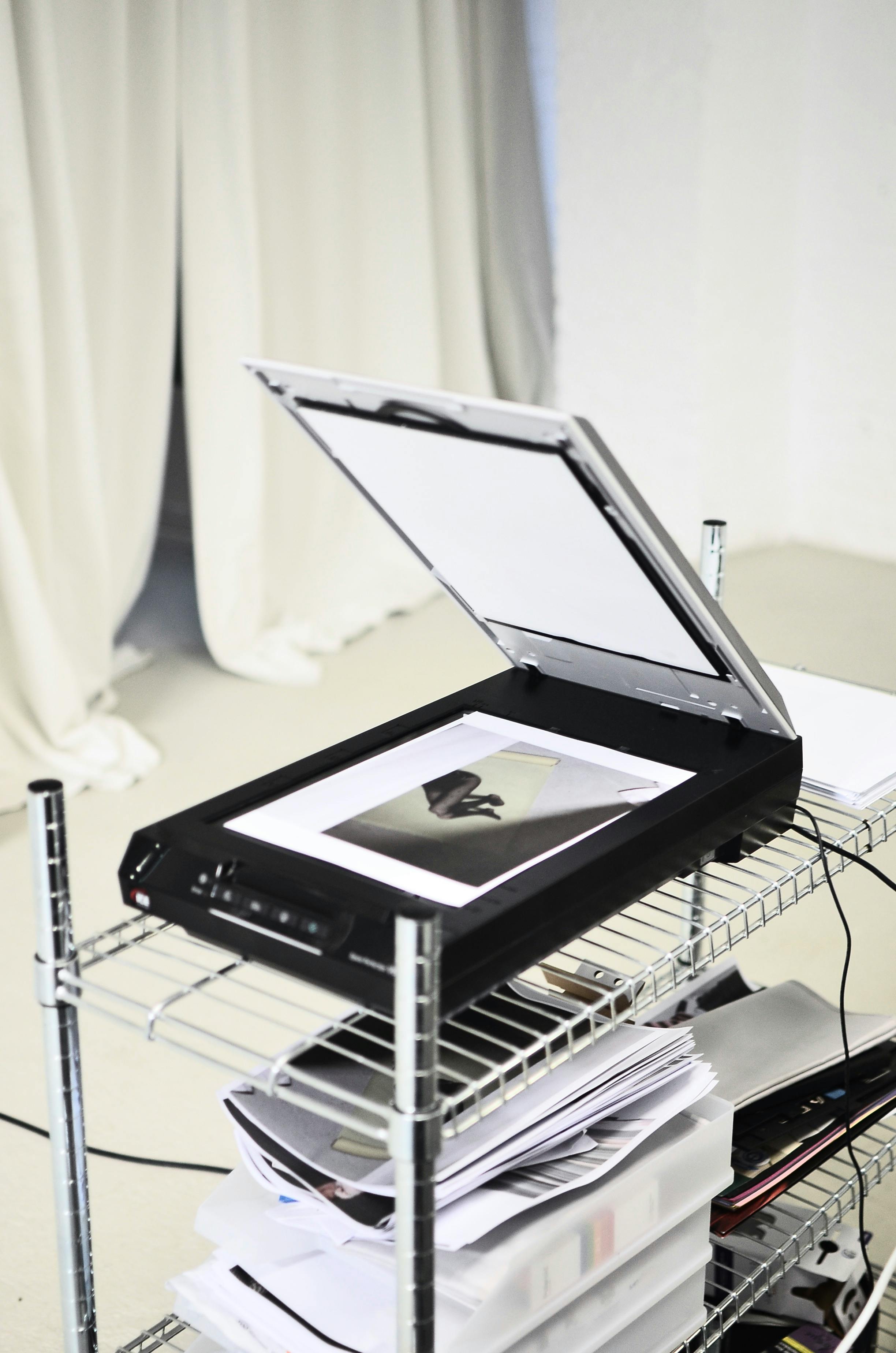
Scan to PDF on Windows 11
- Open the Windows Scan app (download from the Microsoft Store if needed).
- Select your all-in-one printer in the device list.
- Set Source = Flatbed (or Feeder), File Type = PDF.
- Click Scan, then Save.
Scan to PDF on macOS
- Open Preview.
- Click File > Import from Scanner > pick your printer.
- Choose PDF and the page size, then click Scan.
Scan with your iPhone or iPad
You can skip the printer entirely. In the Notes app tap the camera icon > Scan Documents. iOS will perspective-correct each page automatically and let you save as PDF.
Scan with your Android phone
Open Google Drive > tap the “+” > Scan. Drive will detect edges and save your scan as a multi-page PDF in your account.
Scan to email directly from the printer
Most all-in-ones can email a scan without a computer. You’ll need to:
- Open the printer’s web interface (type its IP into a browser).
- Find Scan to Email settings.
- Enter your SMTP server details (Gmail requires an app password).
Troubleshooting
- Scanner not found: Reinstall the full driver — the basic driver only includes print.
- Mac “Connection failed”: Re-add the printer in System Settings; the scan driver attaches automatically.
- Blank or streaky scans: Clean the flatbed glass with a microfibre cloth and a small amount of isopropyl alcohol.